Ergonomic guidance from OSHA and NIOSH centers on positioning the body so major joints stay close to their neutral (natural, low-strain) alignment during a task, reducing sustained muscular load — a workstation setup checklist (monitor height, chair support, keyboard position) is a practical application of this same neutral-joint-position principle.
Reading time
— 4 min
Updated
— Aug 22, 2026
Fact-reviewed
— Aug 22, 2026
This entry explains general ergonomics literacy — it is not medical advice. Persistent pain or discomfort should be evaluated by a doctor or physical therapist.
Key Takeaways
Key Takeaways
1Ergonomic guidance from OSHA and NIOSH centers on keeping joints near their neutral, natural alignment during a task — not on holding one single 'perfect' rigid posture.
2A workstation ergonomics checklist (monitor at eye level, feet flat, elbows near 90 degrees) is a practical application of the same neutral-joint-position principle, not a separate set of rules.
3Movement and position changes throughout the day matter alongside static setup — even a well-configured workstation benefits from regular posture breaks, per NIOSH guidance.
The concept
Good posture, per OSHA's ergonomics guidance, means keeping major joints — neck, shoulders, back, wrists — close to their neutral posture: their natural, relaxed alignment. A workstation setup checklist (monitor height, chair support, keyboard position) exists to help the body reach and hold that neutral alignment during a task like typing, not as a separate, arbitrary set of rules.
Understanding neutral posture as the underlying principle makes workstation checklists easier to apply to unusual setups too, since the goal (keep joints near neutral) stays the same even when the specific furniture or equipment differs.
Quick check
Is the goal of ergonomic guidance to find one single 'perfect' rigid posture and hold it all day?
Worked examples
Example 1: Monitor height and neck neutral position (baseline case)
OSHA's workstation guidance recommends the top of the monitor screen be at or slightly below eye level, roughly an arm's length away. This keeps the neck in a neutral, slightly downward-gaze position rather than tilted back (screen too high) or bent forward (screen too low) — both of which hold the neck away from neutral for a sustained period during screen work.
Example 2: A laptop, which structurally can't achieve neutral posture for both screen and keyboard at once (edge case / variation)
A laptop's built-in screen and keyboard are fixed relative to each other, so raising the screen to neutral neck height (per Example 1) pushes the keyboard too high for neutral wrist and shoulder position, and vice versa. This is exactly why OSHA and Mayo Clinic guidance recommend an external keyboard and mouse (or an external monitor and stand) once a laptop becomes a primary, extended-use workstation — the single-unit laptop design structurally can't satisfy neutral posture for both the neck and the wrists simultaneously.
Quick check
Why can't a standard laptop, used on its own for extended work, typically achieve neutral posture for both the neck and wrists at the same time?
Example 3: Chair support and lower-back neutral position (real-world / applied case)
Mayo Clinic's ergonomics guidance recommends a chair that supports the lower back's natural inward curve (lumbar support), with feet flat on the floor or a footrest. Sitting without lumbar support for extended periods tends to let the lower back round outward, away from its neutral curve — the same underlying mechanism (sustained non-neutral joint/spine position) as the neck and wrist examples above, just applied to the lower back specifically.
How it works (visual)
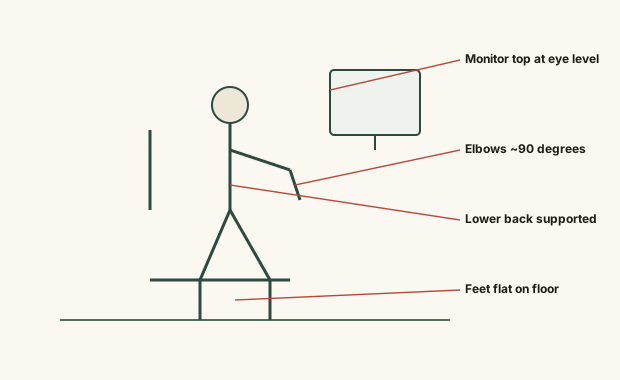
Neutral posture reference points at a workstation
Each callout marks a joint or body segment near its own neutral position — the diagram is a checklist of independent adjustment points, not one single measurement to get exactly right.
Common mistakes
Common Mistakes
✕
Using a laptop alone for extended work without an external keyboard, mouse, or monitor stand.
→ Add external peripherals once laptop use becomes extended or primary, since the built-in design can't optimize both screen and keyboard position at once.
✕
Sitting without lower-back (lumbar) support for long periods.
→ Use a chair with lumbar support, or a small cushion, to help maintain the lower back's natural curve.
✕
Treating ergonomic setup as a one-time fix and never moving for the rest of the day.
→ Take periodic movement or position-change breaks even with a well-configured setup, per NIOSH guidance.
Common misconception
“Sitting up perfectly straight and rigid all day is the correct posture.”
Ergonomic guidance is about neutral, natural joint alignment and regular movement — not a rigid, unmoving "sit up straight" posture, which itself creates sustained muscular tension in different muscle groups. OSHA and NIOSH guidance both frame good ergonomics as minimizing sustained strain through alignment and movement together, not through forced rigidity.
Quick check
Is sitting perfectly rigid and straight all day considered good ergonomic posture?
What to do next
What to do next
Position your monitor so its top is at or slightly below eye level, roughly an arm's length away.
Use a chair with lower-back support and keep feet flat on the floor or a footrest.
Add an external keyboard, mouse, or monitor stand if using a laptop for extended work.
Take regular movement or position-change breaks, even with a well-configured setup — and see a doctor or physical therapist for persistent discomfort.
FAQ
FAQ
Related terms
Related terms
Neutral posture
A body position in which joints are naturally aligned, minimizing muscular strain and stress on tendons, nerves, and bones — the core reference point in ergonomic guidance.
Ergonomics
The science of designing a task, tool, or workstation to fit the human body's natural movement and alignment, reducing physical strain.
This entry was researched from public sources and drafted with AI-assisted tools, then edited — errors are still possible. Spot one, or want a topic covered? Read our disclaimer.
 KnowThis