 KnowThis
Key Takeaways
Key Takeaways
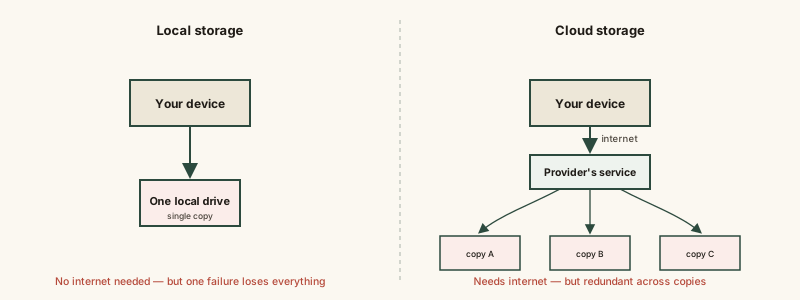
- 1Local storage gives you full control and no internet dependency, but one drive failure, theft, or fire can destroy the only copy — it's a single point of failure by default.
- 2Cloud storage spreads your data across a provider's redundant servers and makes it reachable from anywhere with internet, but it requires an ongoing connection and ongoing trust in that provider.
- 3Neither option is a complete backup strategy on its own — the most resilient approach usually combines both, following the same logic as the well-known '3-2-1' backup rule.
The concept
With the redundancy-versus-dependency trade-off in view, the specific differences in speed, cost, and access start to make sense as consequences of that one underlying design choice.
A photographer keeps all their work on a single external hard drive with no other copy anywhere. What is the main risk with this setup?
Worked examples
Example 1: A student saving coursework locally only (baseline case)
A student loses months of coursework when their laptop's only drive fails, with no other copy anywhere. What would have prevented this specific loss?
Example 2: Working with large video files entirely in the cloud (edge case / variation)
Why might a video editor prefer working from a local hard drive rather than directly from cloud storage, even if both contain the same files?
Example 3: A small business combining both (real-world / applied case)
A small business keeps its active working files on office computers (local storage, for fast day-to-day access) while also running automatic cloud backups of that same data every night. If an office computer fails, the local copy is quickly restored from a recent local backup; if the entire office is damaged by fire or theft, the off-site cloud copy still exists. This combined approach directly follows the reasoning behind the 3-2-1 backup rule: no single local or remote failure can take out every copy at once, because each storage type is protecting against the specific failure the other one is weak against.
A small business keeps working files locally and also runs nightly cloud backups. Why does this combination protect against more scenarios than either option alone?
How it works (visual)
Common mistakes
Common Mistakes
Treating a single local drive as a complete, sufficient backup strategy.
→ One local copy has no protection against that single device failing, being lost, or being stolen — pair it with a second copy elsewhere, ideally off-site.
Assuming cloud storage's redundancy protects against accidental deletion or file corruption.
→ Redundancy protects against hardware failure, not against you deleting the wrong file — check whether your provider also offers version history or a recycle-bin retention window.
Editing large files directly from cloud storage over a slow connection and blaming the software for lag.
→ Data-intensive work like video or audio editing usually performs better from local storage; treat cloud storage as the archive/sync layer, not necessarily the live working copy.
Common misconception
“Cloud storage means my data can basically never be lost.”
Cloud storage protects against hardware failure through redundancy, but it does not protect against every kind of loss. Deleting a file, a ransomware infection that syncs encrypted files up to the cloud, or a provider suspending an account can still result in real data loss. Redundancy is a strong defense against one specific failure mode — physical hardware breaking — not an absolute guarantee against all of them.
Try it yourself
Illustrative only — actual provider pricing varies by tier and changes over time. Enter a per-gigabyte rate to see how the total scales.
This is a simple unit-rate illustration, not a quote — real providers use tiered pricing, free allowances, and additional fees for data transfer.
What to do next
What to do next
- Check whether anything important exists as only one copy, on only one device — that's the single point of failure to fix first.
- For data-intensive work like video or large design files, keep an active local copy and let cloud storage handle the backup/sync layer.
- Confirm whether your cloud storage provider keeps deleted-file or version history, and for how long, before assuming it protects against mistakes.
- Read How Automatic Backups Actually Work next to see exactly how a cloud backup keeps history rather than just mirroring your newest changes.