 KnowThis
Key Takeaways
Key Takeaways
- 1An automatic backup makes a scheduled copy of data to a separate location and keeps a history of past versions — it's built to let you go back in time, not just mirror right now.
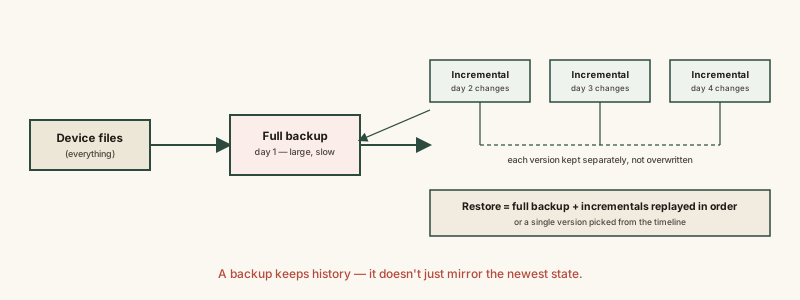
- 2After an initial full backup, most systems switch to sending only incremental backups — just what changed — which is why the first backup is slow and later ones are fast.
- 3Backup and sync are not the same mechanism: sync mirrors your current state everywhere, including deletions, while backup deliberately preserves what things looked like before.
The concept
The backup-versus-sync distinction is the single most consequential thing to get right here, because assuming the wrong one is protecting you is exactly how people discover — too late — that their "backup" just faithfully copied a mistake everywhere.
Someone accidentally deletes an important folder on their laptop, which is set up to sync automatically with a cloud folder. What most likely happens to the cloud copy?
Worked examples
Example 1: Setting up automatic backup for the first time (baseline case)
Why does the very first automatic backup of a laptop take much longer than every backup that runs after it?
Example 2: Ransomware encrypting files right before a scheduled backup (edge case / variation)
A backup ran automatically right after ransomware encrypted a user's files. Does this mean the backup system is useless for recovering from the attack?
Example 3: A small business restoring after a hardware failure (real-world / applied case)
A small business's office server fails completely. Because it ran automatic, scheduled backups to a separate cloud location, IT staff can restore the most recent full backup plus every incremental backup taken since, rebuilding the server's data up to the point of the last successful backup run — typically losing only the small window of work done since that last backup, rather than everything. This restore process, replaying a full backup and its subsequent incrementals in order, is the practical payoff of the incremental-backup design: it made nightly backups fast enough to actually run consistently, which is what made a near-complete recovery possible at all.
A business restores its failed server using the last full backup plus every incremental backup taken since. What data, if any, is typically still lost?
How it works (visual)
Common mistakes
Common Mistakes
Assuming a sync folder is the same thing as a backup.
→ Sync mirrors your current state, including deletions and corruption; a real backup preserves separate historical versions you can roll back to.
Never checking whether backups are actually completing successfully.
→ A backup that silently fails for weeks provides zero protection — periodically verify backups are running and, ideally, test restoring a file from one.
Backing up to a location on the same device or same physical site as the original data only.
→ Keep at least one backup copy off-site or in the cloud, so a single event like theft, fire, or hardware failure can't destroy the source and every backup at once.
Common misconception
“If a file is set to sync automatically, it's already backed up.”
Sync and backup solve different problems. Sync keeps the same file consistent across multiple devices in real time — if you delete it or it becomes corrupted on one device, that change propagates everywhere it syncs. Backup deliberately keeps separate copies of past states specifically so a bad change can be undone. A file can be perfectly synced and still have zero real backup protection if no version history exists behind it.
Try it yourself
A rough estimate of how long a first full cloud backup will take, based on data size and your connection's upload speed.
Assumes a steady, dedicated connection with no other traffic — real-world speeds fluctuate, so treat this as a rough lower bound.
What to do next
What to do next
- Confirm whether your important data is on a real backup schedule with version history, not just a sync folder.
- Keep at least one backup copy off-site or in the cloud, separate from the original device's physical location.
- Periodically verify backups are actually completing — a silently failing backup gives no protection at all.
- Read Cloud Storage vs. Local Storage next to see how backup fits into a broader, more resilient storage strategy.