 KnowThis
Key Takeaways
Key Takeaways
- 1A byte is 8 bits, and every larger storage unit — kilobyte, megabyte, gigabyte, terabyte — is built from that same base unit by repeated multiplication.
- 2Two different conventions exist for what that multiplication step actually is: decimal (SI), where 1 kilobyte = 1,000 bytes, and binary, where 1 kilobyte historically meant 1,024 bytes because computer memory addresses naturally fall into powers of two.
- 3Storage manufacturers report capacity in decimal units (bigger-looking numbers), while most operating systems still display file sizes using binary math under decimal-looking labels — which is the entire reason a '1TB' drive shows up as roughly 931 GB in Windows, with no bytes actually missing.
The concept
Once the two counting systems are separated out, the "missing space" complaint that circulates around every new drive purchase turns out to be a straightforward unit-conversion problem, not a hardware defect.
A brand-new external drive is advertised as '2TB.' The moment you plug it in, your computer reports its capacity as roughly 1.82 TB before you've saved a single file. What's the most likely explanation?
Worked examples
Example 1: Converting bytes to decimal gigabytes (baseline case)
Example 2: The same bytes, read the binary way (edge case / variation)
Why does the gap between decimal and binary storage units get proportionally larger as the total size grows (kilobytes to terabytes)?
Example 3: Buying a drive and accounting for the full gap (real-world / applied case)
How it works (visual)
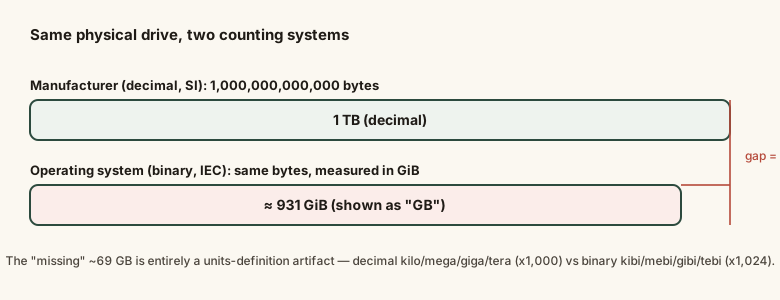
The shorter bottom bar isn't a smaller drive — it's the identical set of bytes, counted in steps of 1,024 instead of steps of 1,000. Once you can see the two bars are measuring the same underlying quantity, the "missing" gigabytes stop looking like a mystery.
Common mistakes
Common Mistakes
Assuming a drive's advertised capacity and its operating-system-reported capacity should be identical numbers.
→ Expect a gap of up to ~10% at the terabyte scale between the manufacturer's decimal number and the OS's binary-based display — it's normal, not a shortfall.
Confusing MB (megabyte, a storage unit) with Mb (megabit, a bandwidth unit) — the capital vs lowercase B matters and they differ by a factor of 8.
→ Read the case of the 'b' carefully; a byte-vs-bit mix-up compounds with the decimal-vs-binary mix-up to produce numbers that look wildly inconsistent.
Treating 'missing' space after formatting as evidence of a defective or short-shipped drive.
→ Separate the two real effects — the decimal-vs-binary units gap (the large one) and filesystem metadata overhead (the small one) — before assuming anything is wrong with the hardware.
Common misconception
“Computers 'lose' storage space every time you format a large drive, and manufacturers are shorting buyers on capacity.”
The overwhelming majority of the apparent gap between an advertised drive capacity and what your computer displays is a pure units-definition mismatch — decimal (1,000-based) units on the box versus binary (1,024-based) units in the operating system's display, not a difference in physical bytes. A small amount of space genuinely is reserved for filesystem metadata during formatting, but it is a minor fraction of the total, dwarfed by the units gap at large capacities.
RAM specifications (like '16GB of memory') almost always use which counting convention?
Try it yourself
What to do next
What to do next
- When comparing drive capacities across brands, check whether the spec sheet is using decimal or binary units — most storage marketing uses decimal.
- Remember RAM specs are essentially always binary, even without a KiB/MiB/GiB label.
- Don't assume 'missing' space after buying or formatting a drive means a defect — check the decimal-vs-binary gap first using the calculator above.
- Use KiB/MiB/GiB yourself in technical writing when the distinction actually matters, to avoid passing the ambiguity on to your reader.