CPU, RAM, and Storage: What Each One Actually Does
A CPU processes instructions, RAM temporarily holds the data a running program needs for instant access, and storage permanently keeps data even with the power off — three different jobs, each with its own speed and capacity trade-off.
Reading time
— 5 min
Updated
— Sep 24, 2026
Fact-reviewed
— Aug 28, 2026
Key Takeaways
Key Takeaways
1The CPU does the thinking, RAM is the desk it works on, and storage is the filing cabinet across the room — three different jobs, and no amount of extra filing cabinet space makes the desk bigger.
2RAM is fast but volatile — it forgets everything the instant power is cut — while storage is slower but non-volatile, which is exactly why unsaved work disappears in a crash but saved files don't.
3A computer's overall speed is set by whichever of these three components is the bottleneck for a given task, not by whichever one has the biggest number on the spec sheet.
The concept
Think of a computer like someone working at a desk in an office. The CPU is the person doing the actual thinking and calculating. RAM is the desk — it holds whatever documents are currently in use, within instant reach, but the desk gets cleared the moment the office closes for the night. Storage (an SSD or HDD) is the filing cabinet across the room — it holds everything permanently, but walking over to grab a folder takes longer than just reaching across the desk.
This hierarchy explains a question a lot of people ask without quite phrasing it this way: why doesn't buying more storage make a slow computer feel faster? Storage capacity and RAM capacity solve completely different problems, and the next section is where that distinction earns its keep.
Quick check
A computer is running slowly while several browser tabs and programs are open at once, but it has plenty of free storage space. What is the most likely explanation?
Worked examples
Example 1: Opening a document (baseline case)
Double-clicking a text file triggers this exact chain: the CPU asks storage to hand over the file's data, storage sends it (relatively slowly, since it involves either mechanical movement on an HDD or an electronic read on an SSD), and the operating system copies that data into RAM. From that point on, the CPU reads and edits the document directly from RAM — fast, instant-feeling access — and only writes it back to storage when the file is saved. This is the core reason "save your work often" is real advice: the version living in RAM is not yet the version living in storage, and RAM's contents vanish the instant power is lost.
Example 2: Two computers with the same CPU, different RAM amounts (edge case / variation)
Two otherwise-identical computers have the same CPU, but one has a small amount of RAM and the other has substantially more. Running one lightweight program, they perform almost identically — there's plenty of RAM for the task on both machines, so the CPU is the limiting factor either way. Now open a dozen large programs simultaneously: the low-RAM machine runs out of space to hold everything currently in use and starts swapping data out to storage, becoming noticeably slower, while the high-RAM machine keeps everything active in RAM and stays responsive. The CPU didn't change — the bottleneck moved.
Quick check
If two computers have identical CPUs but different amounts of RAM, when would the difference in RAM actually matter for performance?
Example 3: Deciding what to upgrade on a sluggish laptop (real-world / applied case)
Someone whose laptop feels slow when they have many browser tabs and a couple of other programs open, but who edits large video files rarely, is very likely RAM-limited, not CPU- or storage-limited — more RAM lets the system keep more active programs' data close at hand instead of constantly swapping to storage. Someone who instead notices the laptop taking a long time specifically to boot up, open large files, or install software is more likely storage-limited, and would benefit more from a faster storage drive (see the companion entry on SSD vs HDD). A CPU upgrade matters most for workloads that are genuinely computation-heavy — video encoding, complex spreadsheets, or running many calculations — rather than for having many things open at once.
Quick check
Someone's laptop boots up quickly and opens large files fast, but feels sluggish specifically when many browser tabs and programs are open at once. Which upgrade would most directly address this?
How it works (visual)
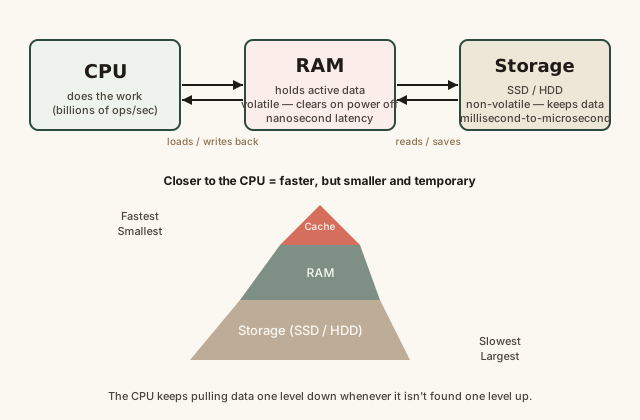
The CPU-RAM-storage pipeline and memory hierarchy
Every layer in the pyramid exists to hide the slowness of the layer below it from the layer above — the CPU almost never waits on storage directly if the memory hierarchy is doing its job, because RAM and cache absorb most of the requests first.
Common mistakes
Common Mistakes
✕
Assuming more storage space automatically makes a computer run faster.
→ Storage capacity and RAM capacity solve different problems — extra storage helps you hold more files, but it doesn't help programs that are already running feel snappier.
✕
Judging CPU performance by clock speed (GHz) alone.
→ Clock speed measures cycles per second, but real performance also depends on how many cores the CPU has, how efficient each cycle is, and how fast RAM can feed it data — two CPUs at the same GHz can perform very differently.
✕
Believing RAM and storage are interchangeable terms for 'memory.'
→ RAM is temporary and volatile (cleared on power-off); storage is permanent and non-volatile. Losing unsaved work in a crash is RAM being cleared — the saved version in storage is untouched.
✕
Thinking closing an app 'frees up storage' the same way it frees up RAM.
→ Closing a running app releases the RAM it was using almost immediately; it has no effect on storage space, which only changes when files are actually added or deleted.
Common misconception
“Buying a computer with a huge amount of storage is the single best way to make it feel fast.”
Storage capacity determines how much you can save, not how quickly programs run day to day. A device with generous storage but too little RAM will still feel sluggish under a normal multitasking load, because the operating system will constantly swap data between RAM and storage to compensate — and that swap operation is exactly the kind of slow, storage-speed access the memory hierarchy exists to avoid. For typical everyday responsiveness, RAM headroom and a reasonably fast storage drive (see SSD vs HDD) usually matter more than raw storage capacity.
Quick check
Why does a computer with a very large hard drive but a small amount of RAM still feel sluggish when multitasking?
Try it yourself
Convert between storage units
See how a value in one storage unit converts to another using the standard binary-multiple factor (1,024) computers actually use internally.
Converted amount8,192
What to do next
What to do next
Before upgrading a slow computer, identify which resource is actually maxed out — check RAM usage during your normal workload before assuming a storage or CPU upgrade will help.
If you regularly run out of RAM with normal multitasking, prioritize a RAM upgrade over extra storage capacity for everyday responsiveness.
If boot time and large-file operations feel slow but multitasking feels fine, look at the companion entry on SSD vs HDD before assuming you need more RAM.
Remember that saved files live in storage and are safe through a crash or shutdown, while anything unsaved lives only in RAM and is lost the instant power cuts out.
FAQ
FAQ
Related terms
Related terms
CPU
Central Processing Unit — the chip that executes program instructions, one of the three core components involved in every computing task.
RAM
Random Access Memory — fast, volatile memory that holds the data and instructions a running program needs immediate access to.
Storage
Non-volatile memory (an SSD or HDD) that keeps data permanently, even when the device is powered off.
Volatile memory
Memory that loses its contents when power is removed, such as RAM.
Non-volatile memory
Memory that retains its contents without power, such as an SSD or HDD.
Cache
A very small, very fast pool of memory built directly into or next to the CPU, used to hold the data the CPU is most likely to need next.
Clock speed
How many cycles per second a CPU can execute, measured in gigahertz (GHz); one common — but incomplete — measure of CPU performance.
Bottleneck
The single slowest component in a chain of operations that ends up limiting the speed of the whole system, regardless of how fast the other components are.
This entry was researched from public sources and drafted with AI-assisted tools, then edited — errors are still possible. Spot one, or want a topic covered? Read our disclaimer.
 KnowThis