An SSD (solid-state drive) stores data electronically in flash memory chips with no moving parts, while an HDD (hard disk drive) stores data magnetically on a spinning platter read by a physically moving arm — the mechanical motion in an HDD is the direct cause of its slower speed.
Reading time
— 5 min
Updated
— Sep 24, 2026
Fact-reviewed
— Aug 28, 2026
Key Takeaways
Key Takeaways
1An HDD reads data by physically spinning a magnetic platter and moving an arm to the right spot — an SSD reads data by checking the electrical state of flash memory cells, with nothing moving at all.
2That mechanical difference is why HDDs are dramatically slower at random access (many small, scattered reads) even when their raw sequential speed looks reasonable on paper.
3SSDs have no moving parts to wear out mechanically, but individual flash memory cells do have a limited number of rewrite cycles, which controllers manage with wear-leveling.
The concept
Picture the difference between a record player and a light switch panel. An HDD is like a record player — there's a spinning disk and a physical arm that has to move to the right spot before it can "read" anything, and that physical movement takes time. An SSD is like a wall of light switches — flipping any switch to check its state happens instantly and electronically, with nothing needing to physically travel anywhere. Both eventually hold the same data; how they get to it is completely different, and that difference is the entire reason one is faster than the other.
That seek-time-and-rotation cost isn't a minor footnote — it's measured in milliseconds on an HDD versus microseconds or less on an SSD, a gap of roughly a thousand-fold for the worst-case random access pattern. The next section puts real operations through that gap. That same architectural difference also changes what happens after you hit delete — see why deleting a file doesn't erase it right away for how SSDs and HDDs handle freed-up space differently.
Quick check
Why is the speed gap between an SSD and an HDD usually much larger when opening an operating system with hundreds of small files, compared to copying one large video file?
Worked examples
Example 1: Booting an operating system (baseline case)
Starting up an operating system means reading hundreds to thousands of small files scattered across the drive — configuration files, drivers, background services — in roughly the order the system decides it needs them, which is a textbook random-access workload. On an HDD, each of those small reads can cost several milliseconds of seek-and-rotate delay on top of the actual data transfer, and those milliseconds add up across thousands of files into a boot process that can take well over a minute. On an SSD, each of those same small reads happens in a fraction of a millisecond with no mechanical delay at all, which is the single biggest reason SSD-equipped computers are widely reported to boot in a fraction of the time.
Quick check
Booting an operating system involves reading hundreds to thousands of small files. Why does this take noticeably longer on an HDD than on an SSD?
Example 2: Copying one large video file (edge case / variation)
Copying a single large, continuous video file is a sequential workload — the drive reads or writes one long, uninterrupted stream of data rather than many scattered pieces. Here, an HDD only pays its mechanical seek-and-rotate cost once, at the very start, then streams the rest of the file at a respectable sustained rate. An SSD is still faster in this scenario, but the gap is proportionally much smaller than the boot-time example — which is exactly why some cost-conscious setups still pair a large HDD for bulk file storage (photos, video archives, backups accessed sequentially) with a smaller SSD for the operating system and frequently used programs.
Quick check
A user copies one large 20GB video file and separately unzips a folder containing 5,000 small text files, both on the same HDD. Which operation is proportionally slower relative to what an SSD would achieve, and why?
Example 3: Choosing a drive for a budget laptop refresh (real-world / applied case)
Someone upgrading an older laptop that currently has an HDD and feels sluggish for everyday use — web browsing, opening apps, general responsiveness — will typically feel the single biggest improvement from switching to an SSD, more than from adding RAM or getting a faster CPU, precisely because everyday computer use is dominated by exactly the kind of small, scattered file access where HDDs lose the most time. Someone specifically needing very large, low-cost storage for archival purposes (large media libraries accessed occasionally, not constantly) may still reasonably choose an HDD or a mixed setup, since HDDs have historically offered lower cost per gigabyte at very large capacities.
Quick check
An old laptop with an HDD feels sluggish for everyday web browsing and app use. Which upgrade will most likely provide the biggest improvement?
How it works (visual)
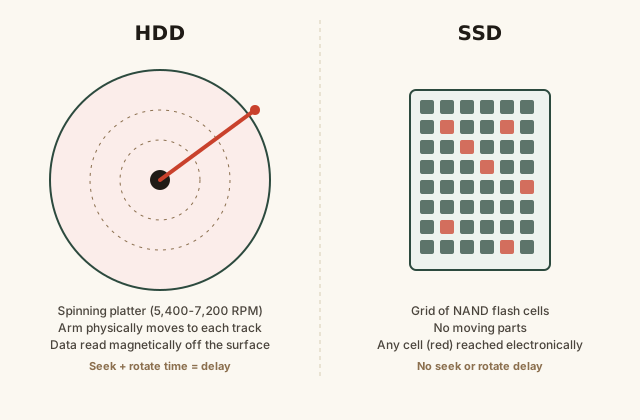
How an HDD's spinning platter compares to an SSD's flash memory grid
Every red cell in the SSD grid is reachable in roughly the same amount of time no matter where it sits — there's no equivalent of the HDD arm having to physically travel further for some data than others.
Common mistakes
Common Mistakes
✕
Assuming SSDs and HDDs differ only in speed, not in underlying mechanism.
→ The speed difference is a direct consequence of the mechanism — HDDs are mechanical (moving platter and arm), SSDs are electronic (flash memory cells) — not an arbitrary manufacturing choice.
✕
Believing SSDs never wear out or fail.
→ SSDs have no moving parts to mechanically wear out, but individual flash cells do have a finite number of write cycles; controllers manage this with wear leveling, and for typical personal use it's rarely the practical failure point.
✕
Judging drive speed purely from advertised sequential read/write numbers.
→ Sequential speed is only part of the picture — random read/write performance (many small files) is where the SSD-vs-HDD gap is largest and most noticeable in everyday use like booting up or opening apps.
Common misconception
“An HDD's spec-sheet transfer speed tells you how it will feel in everyday use.”
Everyday computer use — booting up, opening apps, switching between programs — is dominated by random access to many small files, which is the exact workload where an HDD's mechanical seek-and-rotate delay costs the most. A sequential transfer speed number on a spec sheet reflects the HDD's best-case scenario, not its typical one, which is why two drives with similar advertised speeds can feel very different day to day depending on whether they're solid-state or mechanical.
Try it yourself
Estimate file transfer time
Rough estimate of how long a sustained transfer takes at a given sequential speed — real-world speed varies with file size and whether access is sequential or random.
Estimated transfer time (seconds)30.77
Real-world speed varies with file size, drive interface, and how fragmented or scattered the data being read actually is.
What to do next
What to do next
If a computer feels sluggish for everyday use and it currently has an HDD, an SSD upgrade is usually the single highest-impact change available.
For very large, rarely accessed archives (backups, media libraries), an HDD can still be the more cost-effective choice per gigabyte.
Don't judge a drive purely by its advertised sequential speed — look for random read/write performance if the marketing material provides it, since that's closer to everyday use.
Back up important data regardless of drive type — both SSDs and HDDs can fail, just via different mechanisms (flash wear vs. mechanical failure).
FAQ
FAQ
Related terms
Related terms
SSD
Solid-state drive — a storage device that reads and writes data electronically in flash memory chips, with no moving mechanical parts.
HDD
Hard disk drive — a storage device that reads and writes data magnetically on a spinning platter using a physically moving read/write arm.
NAND flash
The type of non-volatile memory chip used inside SSDs, which stores data as trapped electrical charge in individual memory cells.
Seek time
The time an HDD's read/write arm takes to physically move to the correct location on the spinning platter before it can start reading.
Rotational latency
The time an HDD has to wait for the platter to spin the correct data underneath the read/write head.
Sequential read/write
Reading or writing data in one continuous block, which both SSDs and HDDs handle relatively well.
Random read/write
Reading or writing many small, scattered pieces of data, which HDDs handle poorly (due to repeated seek and rotation) but SSDs handle almost as fast as sequential access.
Wear leveling
A technique SSD controllers use to spread write operations evenly across all memory cells, since each flash cell can only be rewritten a limited number of times before wearing out.
This entry was researched from public sources and drafted with AI-assisted tools, then edited — errors are still possible. Spot one, or want a topic covered? Read our disclaimer.
 KnowThis