 KnowThis
Key Takeaways
Key Takeaways
- 1A driver's job is translation — it converts a generic request from the OS ('print this') into the exact, model-specific commands one particular piece of hardware understands.
- 2This is why the same operating system can run on thousands of different hardware combinations: apps and the OS talk in generic terms, and each driver hides the specific hardware differences underneath.
- 3Many drivers run with the same privileged access as the operating system's kernel itself, which is why a badly written driver can crash the entire system, not just the one device it controls.
The concept
Because a driver sits directly between generic software and one very specific piece of hardware, it's also the single most common point of failure when a device that should work simply doesn't — which is exactly what the next few examples walk through.
Why can't an operating system just talk to every printer model using one identical set of commands?
Worked examples
Example 1: Plugging in a new mouse and it just works (baseline case)
When you plug in a basic mouse and it works immediately with no installation, what's actually happening?
Example 2: A specialized graphics tablet that needs a manufacturer-specific driver (edge case / variation)
A pressure-sensitive drawing tablet moves the cursor fine but pressure sensitivity doesn't work without installing the manufacturer's driver. Why?
Example 3: A graphics driver update fixing game performance (real-world / applied case)
Graphics card manufacturers frequently release updated drivers optimized for newly released software, since a driver isn't just a translator but also controls how efficiently a generic rendering request gets converted into the graphics chip's actual instructions. An outdated driver might translate correctly but inefficiently, or lack optimizations for techniques a newer game relies on; updating the driver alone — with no change to the game or the OS — can measurably improve performance, because the translation layer itself got faster and smarter, not the hardware or the game.
How it works (visual)
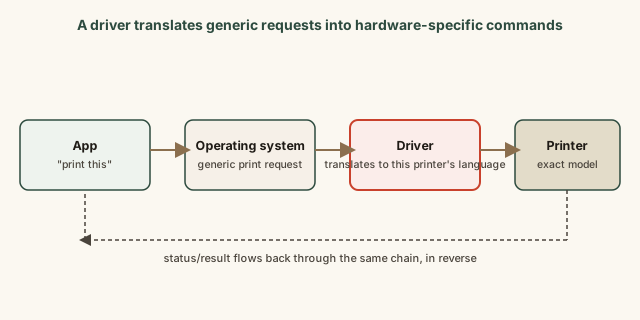
Notice that neither the app nor the OS ever needs to know the exact model of printer attached — the driver is the only layer that has to understand that specific hardware's language, and swapping the printer for a different model just means swapping the driver, with no changes required anywhere else in the chain.
Common mistakes
Common Mistakes
Assuming a connected device that 'sort of works' doesn't need any additional driver.
→ Basic functions often work through a generic fallback driver, while advanced features need the manufacturer's specific driver — partial function is a strong hint a better driver exists.
Installing a driver meant for a different (even similar-sounding) hardware model.
→ Match the driver to the exact model number, since even close variants within the same product line can use different internal commands the wrong driver won't translate correctly.
Blaming an app or the OS for instability that's actually caused by a buggy driver.
→ Because many drivers run with kernel-level privilege, driver bugs can look like broader system crashes — check for driver updates before assuming the OS or app itself is at fault.
Common misconception
“A driver is basically just an installer — once the hardware is set up, the driver isn't doing anything ongoing.”
A driver runs continuously the entire time its hardware is in use, actively translating every single request and response, not just during initial setup. Every mouse movement, every printed page, every frame sent to a display passes back and forth through its driver in real time — which is exactly why an outdated or buggy driver can cause ongoing problems (lag, crashes, missing features) long after installation, rather than only causing a one-time setup failure.
After a printer's driver is installed and the printer works once, is the driver still doing anything each time you print afterward?
What to do next
What to do next
- If a connected device only partially works, check the manufacturer's site for a dedicated driver instead of assuming the device is faulty.
- Keep drivers for performance-critical hardware (graphics, storage) reasonably current, since driver updates can improve speed and stability independent of any app or OS change.
- If a device becomes unstable after working fine previously, check for a recent driver update as a likely first suspect before reinstalling apps or the OS.
- Read the related entry on what an operating system actually does to see the layer immediately above the driver that everything ultimately routes through.